Share and manage subscriptions with Profiles
This page explains our new feature for "Profiles" that enables you organise your subscriptions and share them with others.
Written By unlock
Last updated 6 months ago
You can use them for:
Personal subscriptions
Family or partner sharing
Business or team expenses
🧭 What are Profiles?
Each subscription belongs to a profile.
Profiles help you:
Keep subscriptions organised
Separate different types of spending
Share subscriptions with others
➕ How to create a profile
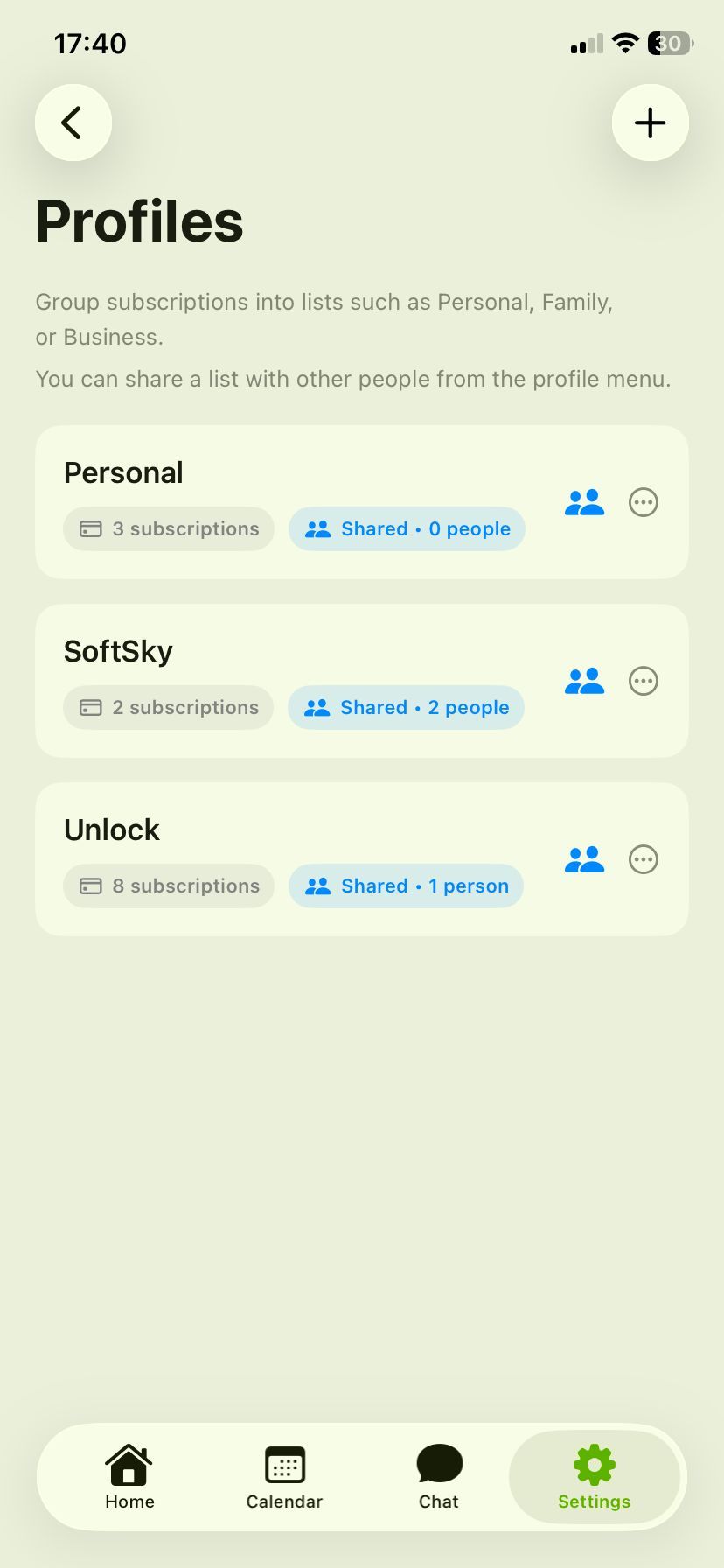
Go to Settings → Profiles
Tap +
Enter a name (e.g. Personal, Family, Business)
Save
🔄 How to switch profiles
Switching profiles changes what you see in the app.
Your subscriptions
Your totals
Your calendar
All update based on the selected profile.
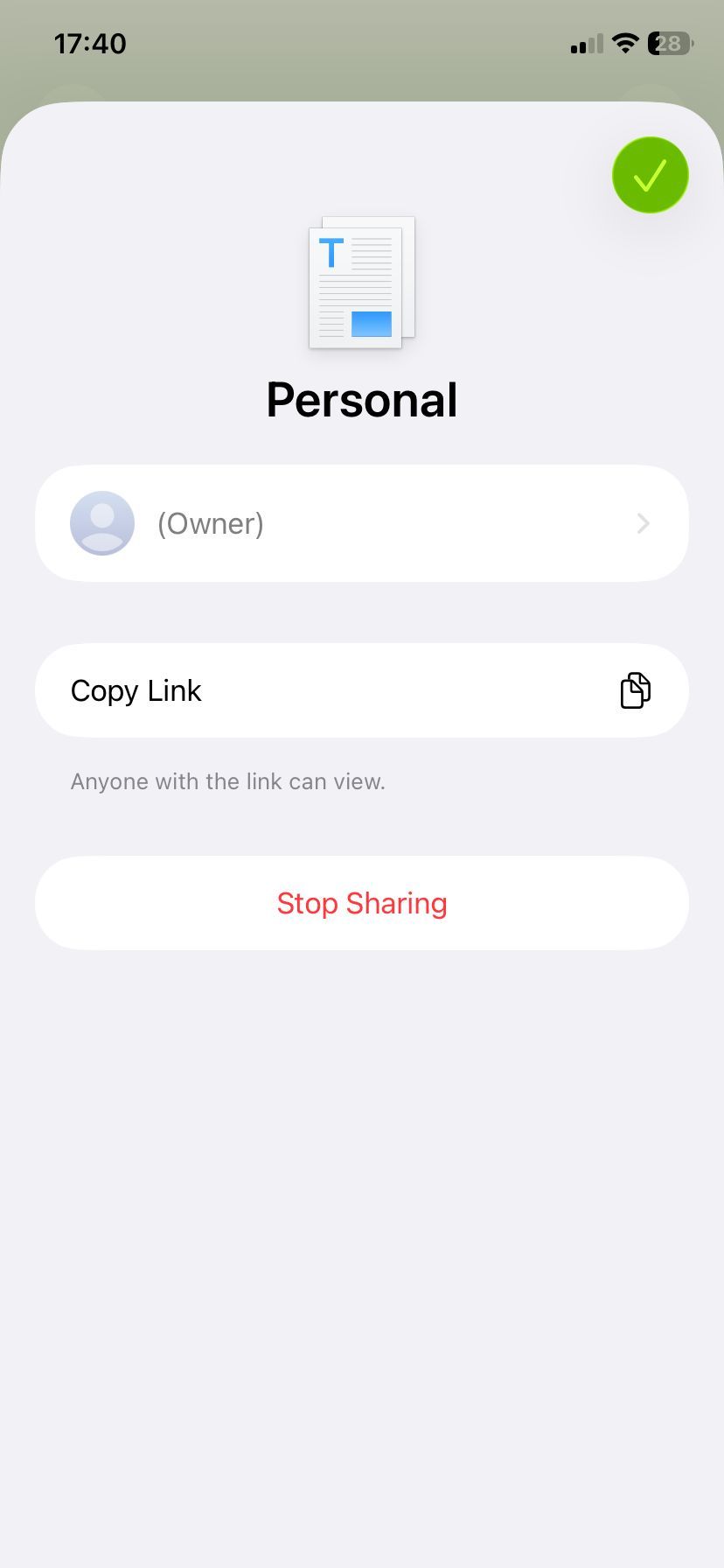
🔗 How to share a profile
Go to Settings → Profiles
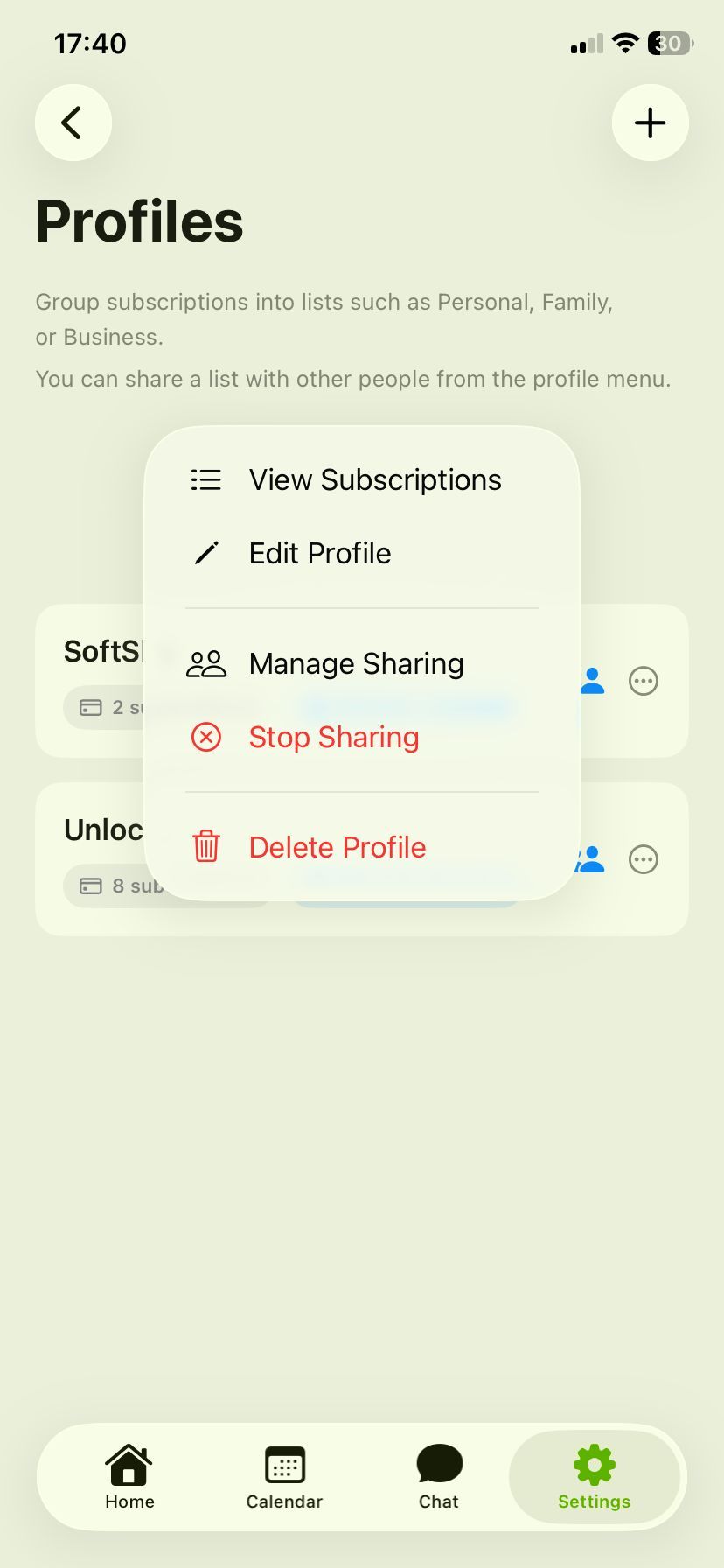
Tap ••• (more options) on a profile
Tap Share Profile
Tap Copy Link
Send the link
👉 Anyone with the link can access that profile
🤝 What happens when you share a profile
The profile becomes shared
Subscriptions inside it are visible to others
Any new subscriptions will appear for everyone
👁 How shared subscriptions are shown
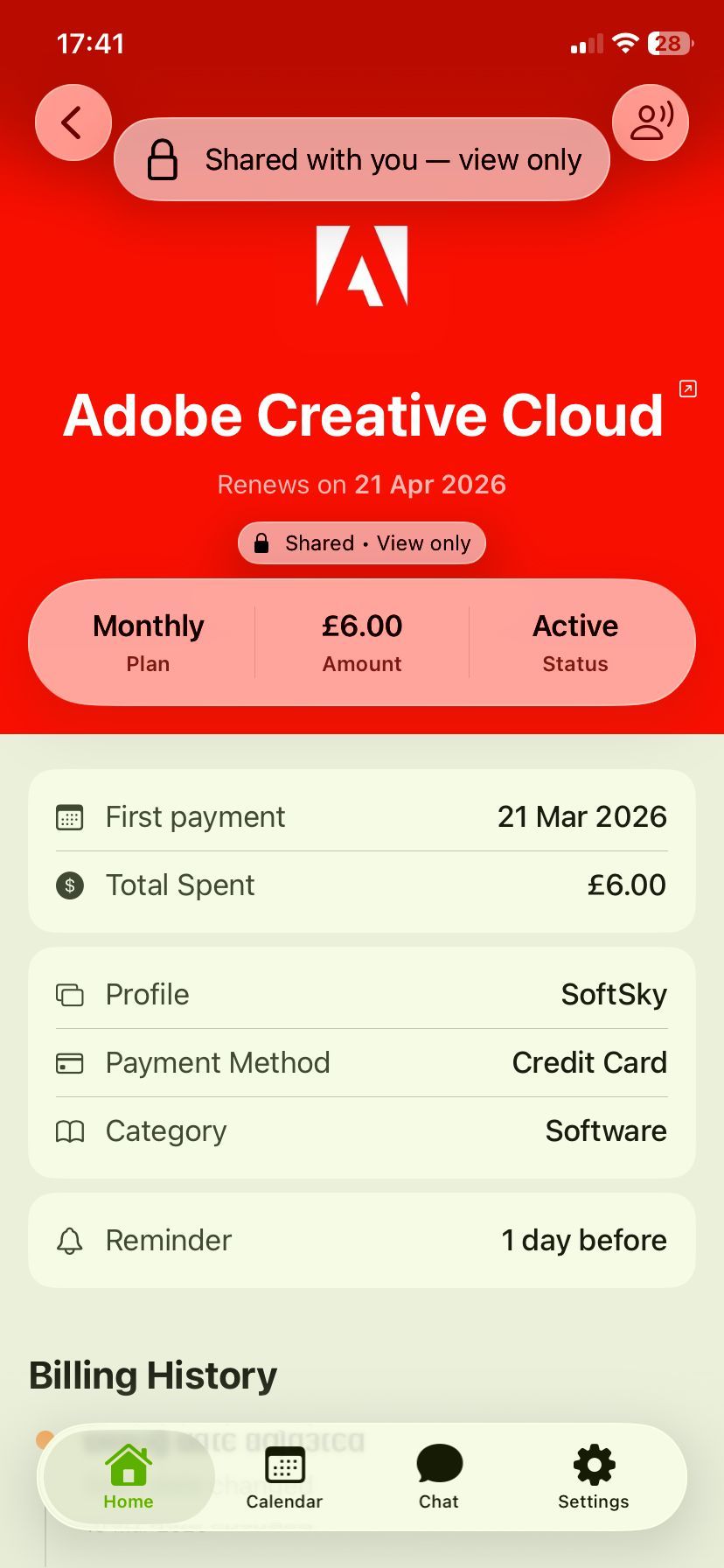
Subio clearly marks shared subscriptions across the app.
🔒 “Shared with you — view only”
Shown at the top when you are not the owner
🔒 “Shared • View only”
Shown inside subscription details
👥 Icon in lists
Subscriptions with a 👥 icon are shared
📁 Profile label
Each subscription shows which profile it belongs to
✏️ Who can edit subscriptions?
The profile owner can:
Add
Edit
Delete
Shared users can:
View subscriptions
Track payments
See reminders
🔐 Why can’t I edit a subscription?
If you see:
👉 “Shared with you — view only”
It means:
You are not the owner
Editing is restricted
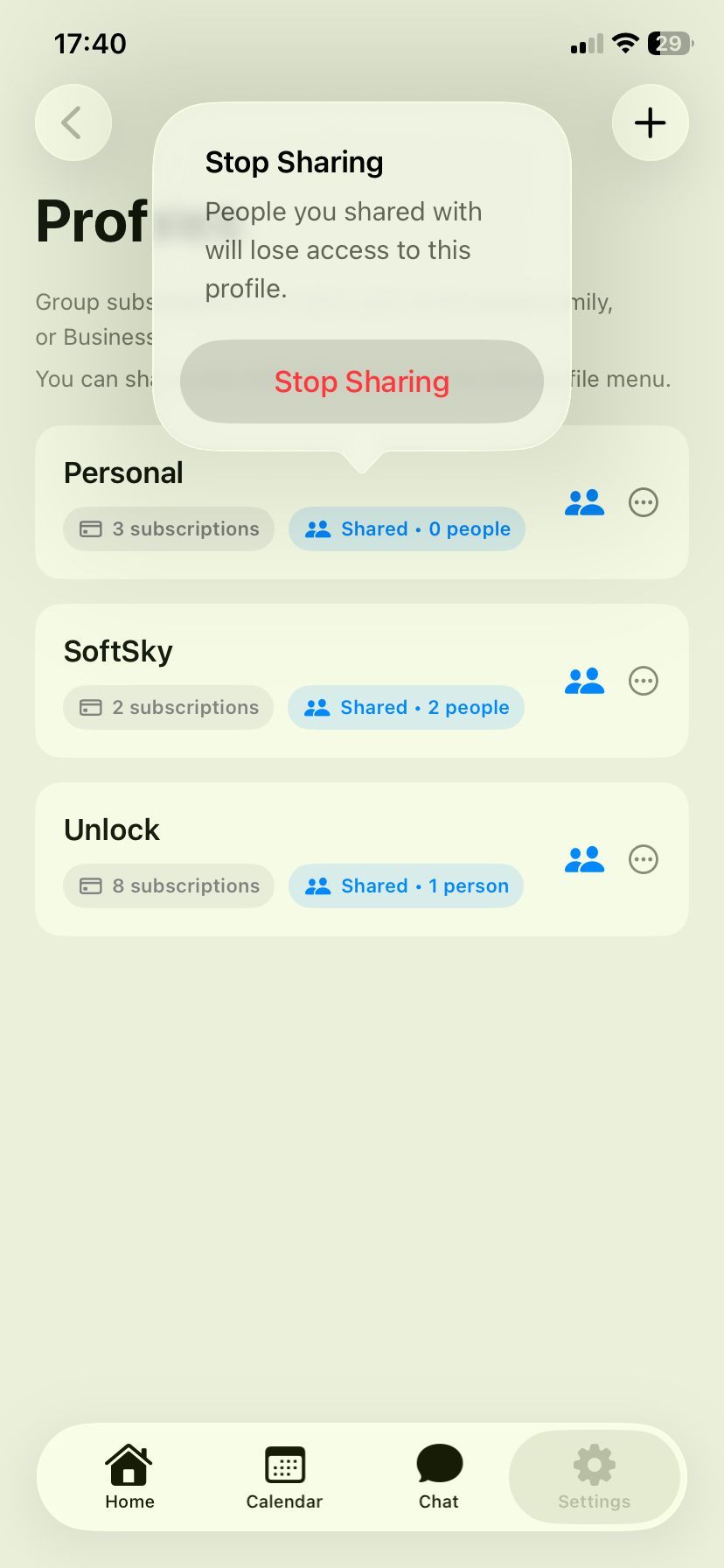
🛑 How to stop sharing a profile
Go to Settings → Profiles
Tap ••• on the profile
Tap Stop Sharing
⚠️ What happens when you stop sharing
Others lose access immediately
The profile becomes private again
Your subscriptions remain unchanged
💡 Tips
Use separate profiles for personal and shared subscriptions
Keep shared subscriptions in one profile for clarity
Use clear names like “Family” or “Work”
Still need help? Ask the team